
A practical workflow for combining PDFs, scanned documents, JPG/PNG/WebP images, and multi-page TIFF files into one clean, submission-ready document—then fixing page order, rotation, pagination, and file size in your browser.
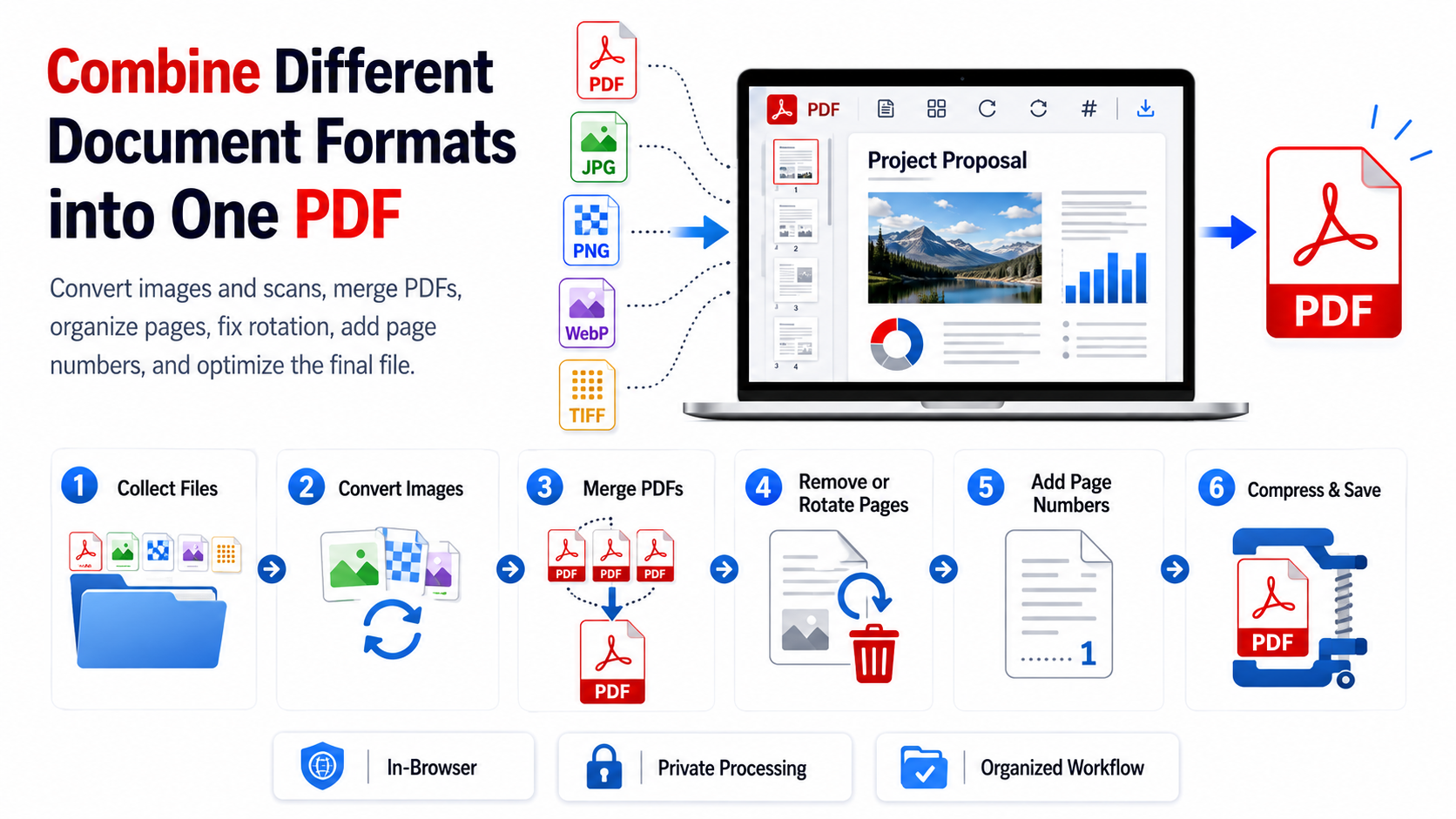
If you are searching for how to combine different document formats into one PDF, the most reliable approach is to treat the job as a short document-building workflow rather than a single conversion. Real submissions often begin with a contract PDF, photographed receipts, PNG screenshots, WebP graphics, or multi-frame TIFF scans. Bringing those sources into a consistent structure first makes the final PDF easier to review, print, submit, and archive.
The steps below show how to combine PDF and images, merge scanned documents, organize a multi-page PDF, correct page orientation, apply continuous page numbers, and reduce the final file size when needed. The workflow uses PDF Core Tools’ in-browser tools so supported processing runs locally in your browser instead of being sent to a remote document-processing queue.
Consolidate Screenshots, Receipts, and Mixed Image Formats
Supporting evidence often arrives as JPG photos, PNG screenshots, WebP graphics, or scans. Convert and organize these visual sources before adding them to the master PDF.
- Batch mixed image files: use Images to PDF to place JPG, PNG, and WebP files into one document-building queue.
- Choose the right page canvas: use A4 or US Letter when you want uniform pages for printing or formal submission. Use Auto-Fit when preserving the source image’s proportions matters more than standard paper dimensions.
- Sequence early: arrange receipts, screenshots, exhibits, and photographs in their logical order before generating the PDF.
- For multi-page TIFF scans: use TIFF to PDF first so individual frames or frame ranges can be converted deliberately.
Merge Disparate PDF Files and Prepared Source Documents
Once images and scans have been converted to PDF pages, combine them with your primary PDFs, exported slide decks, reports, and other already-PDF source documents.
- Assemble in one queue: open Merge PDF and add the source PDFs you want in the final document.
- Build the narrative flow: drag items into the order readers should see them—cover sheet, summary, main document, exhibits, receipts, and appendices.
- Use dividers deliberately: where your workflow supports a blank page, use it to separate major sections or prepare a packet for double-sided printing.
- Need only part of a large source PDF? use Split PDF first to extract the pages or ranges you actually need.
Review and Remove Unwanted Pages
Before you finalize the combined file, remove duplicate scans, accidental cover sheets, test pages, or sections that no longer belong in the submission.
- Review page-by-page: use visible page previews to catch repeated receipts, accidental uploads, or incorrect attachments.
- Remove pages cleanly: use Delete PDF Pages when you need to remove individual pages or ranges from a PDF.
- Keep one source of truth: perform the cleanup before page numbering so the final page count remains stable.
Fix Page Orientations and Inverted Scans
Scanners and phone cameras often create sideways or upside-down pages. Correct those pages before pagination so the finished packet looks intentional on desktop, mobile, and print.
- Target specific pages: open Rotate PDF and select only the pages that need correction.
- Apply exact angles: rotate landscape pages 90° or fix fully inverted scans with a 180° rotation.
- Preserve the corrected orientation: apply rotation to the PDF page structure so the chosen orientation remains when the file is reopened in compatible PDF viewers.
This is the step to use when searching for “how to rotate scanned pages before merging PDF” and you want to correct the source before final assembly—or immediately after assembly before numbering.
Add Unified Page Numbers to the Combined PDF
Files created independently often contain inconsistent or missing numbering. A final numbering pass gives the combined document one clear reference system.
- Apply continuous pagination: use Add Page Numbers to place a consistent numbering format on the combined PDF.
- Skip title sheets or selected ranges: keep covers, contents pages, or section separators unnumbered where appropriate.
- Use the format that fits the section: Roman numerals can suit front matter, while decimal numbers or “Page X of Y” templates work well for the main document. Apply separate numbering rules to the relevant page ranges when the document needs more than one style.
- Position visually: use the preview to move the number away from existing headers, footers, signatures, stamps, or margin notes.
Verify Document Integrity, Reduce File Size, and Protect Privacy
Finish with a quality check. Open the completed PDF, inspect its page order, verify orientation and numbering, and confirm that important text and image details remain readable.
- Check the final sequence: confirm that every exhibit, receipt, appendix, and divider appears exactly once and in the intended order.
- Check readability: zoom in on small scanned text, signatures, diagrams, and photographed receipts before submission.
- Reduce oversized output when needed: use Compress PDF after assembly if an email system or filing portal has a practical file-size requirement.
- Expect device-dependent performance: local processing avoids network upload queues, but very large files can still depend on your device’s available memory and browser performance.
Which PDF Core Tools Should You Use?
| Goal | Recommended Tool | When to Use It |
|---|---|---|
| Convert JPG, PNG, and WebP images to PDF | Images to PDF | Build one PDF from a mixed image queue before merging with other documents. |
| Convert multi-frame TIFF scans | TIFF to PDF | Select frames or ranges from scanned TIFF archives. |
| Combine multiple PDFs | Merge PDF | Assemble the final master packet and place components in order. |
| Extract only needed pages | Split PDF | Trim a large source document before adding it to the master file. |
| Remove duplicates or mistakes | Delete PDF Pages | Clean accidental, repeated, or unnecessary pages. |
| Correct sideways scans | Rotate PDF | Fix selected pages by 90° or 180°. |
| Add continuous numbering | Add Page Numbers | Create a consistent reference scheme after the final page order is stable. |
| Reduce final file size | Compress PDF | Optimize the finished document for email or portal submission. |
Professional Best Practices for PDF Compilation
| Document Type | Recommended Canvas | Key Pagination & Layout Tips |
|---|---|---|
| Legal Briefs & Exhibits | US Letter / Standard Margin | Use continuous footers or Bates-style reference numbering where appropriate; separate major exhibit groups clearly. |
| Tax & Financial Packets | US Letter / A4 | Group forms and receipts logically; rotate every sideways scan before submission. |
| Academic Theses & Portfolios | A4 Portrait | Use Roman numerals for front matter when required, then apply decimal numbering to body chapters. |
| Client Proposals & Decks | Auto-Fit or US Letter | Keep cover graphics first, use a consistent page size where practical, and skip pagination on the cover when appropriate. |
Frequently Asked Questions
How do I combine Word documents and image scans into a single PDF?
Export the Word document to PDF first using your word processor’s Save as PDF or print-to-PDF function. Convert JPG, PNG, or WebP scans with Images to PDF, or process multi-page TIFF scans with TIFF to PDF. Then add the resulting PDFs to Merge PDF and arrange them in the final order.
How can I combine PDF and images or merge PDF and JPG files?
Convert the image files into PDF pages first, then merge those pages with the existing PDF. This two-stage workflow is more predictable than treating unrelated file types as if they were already the same document format.
How do I rotate scanned pages before merging a PDF?
Use Rotate PDF on the source file and correct only the pages that are sideways or inverted. You can also merge first and rotate selected pages before you apply final page numbering.
How do I add page numbers to a combined PDF?
Finish the page order first, remove unwanted pages, and correct rotation. Then open Add Page Numbers, choose the numbering style and target range, position the number in the preview, and apply it to the master file.
How do I merge receipts and PDF contracts for an audit or review packet?
Convert photographed receipts or image scans to PDF, sort them by date or category, then merge them with the contract or report PDF. Remove duplicates, rotate any sideways receipts, and add continuous numbering so every item can be referenced consistently.
Will combining multiple images and PDFs reduce text clarity?
Existing PDF text can remain vector-based when the PDF is processed natively, while image scans remain raster content. Image quality still depends on the source resolution and any compression settings you choose, so review small text and fine details before submission.
Assemble Your Documents with Confidence
Convert mixed images, organize PDFs, correct problem pages, and create one clean final document with a structured in-browser workflow.